
What ISA-101 is
ANSI/ISA-101.01-2015, Human Machine Interfaces for Process Automation Systems, is the ISA standard for the operator displays of process control systems. ARC Advisory Group reports that the ISA Standards and Practices Board approved it in early 2015 and ANSI in July 2015. It applies to continuous, batch and discrete processes.
The standard covers the HMI over its whole life — from design through implementation, operation and maintenance — not only how the displays look. ARC describes its guiding principles as independent of the vendor platform, so the same approach applies to FactoryTalk View, AVEVA or Ignition. The colours, fonts and symbols themselves are written into each plant's own style guide; Rockwell, for example, offers its Process HMI Style Guide as a starting point for that document, not as the standard.
ISA has since published technical reports that support the standard, among them ISA-TR101.02-2019, HMI Usability and Performance, and ISA-TR101.01-2022, HMI Philosophy.
Alarm management has its own article, ISA-18.2 alarm management; SCADA upgrades with ISA-101 and ISA-18.2 looks at both standards when an old system is replaced.
What goes wrong with traditional displays
Yokogawa's ISA-101 blog points to a common pattern: operator displays copied from P&IDs. P&IDs follow the physical layout of the plant in small pieces rather than the flow of the process, so the operator has to search across several displays, and the displays show a great deal of detail with little sign of what matters most. Its example is a pump shown in red: the colour alone does not say whether the pump is running, stopped or in alarm.
The same blog lists the questions an operator should be able to answer at a glance from the control room displays, paraphrased:
- Is the process stable or upset?
- Is the plant running where it should be?
- Are key variables changing or steady?
- How have the most critical variables behaved over the past few hours?
- Are there alarms, where are they, and what should be done?
Emerson's white paper on high-performance HMI makes the same point from the design side: arrange information so the operator can scan for anomalies, rather than draw a realistic picture of the plant.
Display hierarchy and navigation
The hierarchy gives progressive disclosure: the operator sees the whole picture first and opens more detail only when needed. Rockwell names four levels:
| Level | Rockwell's name | Use |
|---|---|---|
| 1 | Overview | The operator's whole span of responsibility: key indicators and alarms of the two or three highest priorities; not for control |
| 2 | Process unit control | The main display for normal operation and routine changes |
| 3 | Process unit detail | Non-routine work and troubleshooting; alarms of all priorities and equipment detail |
| 4 | Process support and diagnostics | The most detailed data, help, procedures and alarm documentation, often as faceplates or pop-ups |
ARC describes the levels in similar terms with slightly different names: an overview of the operator's whole area of control, one unit operation or major task, task detail, and diagnostic displays. ARC notes that most plants are missing level 2 and level 3 displays.
Rockwell gives two practical rules. Level 2 displays are where operators work, so they are designed first and the overview second. Each operating position has only one overview display, although variants can exist for modes such as batch.
For navigation, Rockwell asks for several routes: a main navigation on every display, plus buttons to related displays and to the overview, so that an operator can move around without knowing the hierarchy. Navigation elements stay in the same place on every display and look different from command buttons, so that nobody issues a command by accident. Rockwell also sets display call-up targets: 2 seconds or less for level 2 and level 3 displays, 5 seconds or less for level 1 and level 4.
High-performance design principles
Emerson and Inductive Automation call displays designed along these lines "high-performance HMI". The vendor guides agree on a small set of principles.
A neutral background. Rockwell uses a light grey background and grey outlines for equipment and lines. Emerson recommends a light grey background to reduce glare and operator fatigue, and Inductive Automation's Ignition documentation describes mostly grey-scale displays.
Colour for abnormal conditions. Rockwell calls colour the most overused attribute in display design and reserves bright colours for alarms, with nothing else allowed to use them; live values use a less intense colour such as blue. Ignition's documentation does not recolour faulted equipment at all: an alarm indicator beside it shows the problem instead.
Never colour alone. Rockwell states that a state must not depend on colour only. Ignition's documentation explains why: red and green, or blue and purple, are hard to tell apart for colour-blind users, and industrial displays can lose colour rendering. Colour is therefore paired with shape and text.
Values with context. Rockwell's point is that data by itself is not information: a value becomes useful next to its limits and normal range. Bar graphs show a value against its limits; when a group of bar graphs is scaled well, the pointers form a straight line while everything is normal. Emerson recommends moving analog indicators that show span and limits, tight scales and trends as a top priority.
Flat, simple graphics. Emerson recommends 2D equipment without shading or gradients and only the detail that helps the operator; Rockwell does not use gradients.
Consistent text and faceplates. Rockwell uses a sans-serif font, labels with the names operators actually use, few abbreviations, and faceplates organised in tabs by user type, such as operator and engineer.
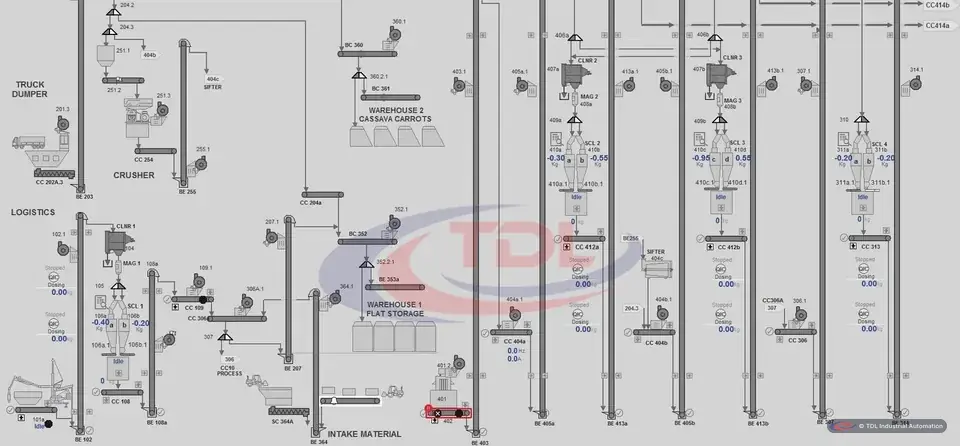
The photo below shows a PlantPAx display of a material intake area that TDL built at Vinh Hoan FeedOne in 2022: grey background, simple grey equipment and states shown as text, with strong colour in only a few places.
The HMI lifecycle
Good displays are the visible result; most of ISA-101 is about the work that produces them and keeps them right. ARC summarises the lifecycle in ISA-101 in four phases. A standards phase sets the HMI philosophy and foundational documents such as style guides. The design phase covers requirements, system design, console design and display design. The implementation phase builds the HMI on the target platform, with testing, documentation and training. The operations phase covers operation, maintenance, management of change and, finally, decommissioning.
Yokogawa describes the same cycle as design, implement and operate, with management of change (MOC), audit and validation running throughout, and notes that it can span decades. It also observes that most sites have no systematic way to keep displays up to date when the plant changes — a moved pressure transmitter or modified pump piping should appear on the HMI too.
Three documents: philosophy, style guide, toolkit
Rockwell's style guide summarises the three documents that ISA-101 defines:
| Document | What it holds | Tied to a platform? |
|---|---|---|
| HMI philosophy | The guiding principles for HMI design at the plant | Can be written independently of the platform or for one platform |
| HMI style guide | How those principles are applied: colours, fonts, layout, navigation, alarm display | Follows the philosophy |
| HMI toolkit | The graphical elements displays are built from: symbols, faceplates, trend objects | Platform-specific |
Rockwell recommends recording the operational needs in the philosophy first. ISA-TR101.01 on the philosophy covers system standards, design principles, implementation, operation, maintenance and continuous improvement — including management of change, audits and performance monitoring — as well as roles, security, control room design and training. Emerson points to reusable toolkits of screen elements as a way to work faster and reduce human error.
The colour budget is a typical decision the style guide fixes once for the whole plant. The figure below uses the values from Rockwell's guide; another plant's style guide may choose different colours, but the rule stays the same: grey for normal, alarm colours for nothing else.
Alarms on the display
Which signals become alarms, and how many an operator can handle, belong to ISA-18.2 — see the ISA-18.2 article. ISA-101 and the style guide decide how alarms appear on the displays. Rockwell's guide shows a typical set of rules:
- the alarm appears next to the item that caused it, not only in the alarm list;
- each priority has its own colour, shape and icon, used the same way across the whole HMI;
- an unacknowledged alarm blinks until acknowledged, and the operator can stop the blinking; text itself does not blink;
- an alarm banner on every display (or a dedicated alarm monitor) shows the latest and highest-priority alarms, and alarm groups follow the display hierarchy so lists can be filtered by area;
- warnings and prompts do not use alarm colours.
Ignition's documentation uses the same idea in its alarm indicator: a coloured, numbered shape placed close to the equipment, sometimes joined to it by a dotted line so the operator cannot attach the alarm to the wrong machine.
Situation awareness and the operator
Situation awareness is usually described in three levels: perceiving what is happening, understanding what it means, and projecting what will happen next. Yokogawa presents displays built on human factors as a way to give the operator situation awareness in a consistent manner. Trends help with the third level: Rockwell notes that a trend shows a value rising steadily, which a bar graph or a number cannot.
The operator is also part of the design. Rockwell designs for the primary user, in most cases the operator: observe and interview operators, prototype displays with them in any drawing tool before building them in the HMI package, and test labels and layouts in the real operating environment. Emerson adds that operators need training on the HMI itself.
New system or upgrade
On a new system the documents come first, then level 2 displays, then the overview. On an upgrade the displays are rebuilt anyway, so it is a good time to write the documents and change the display style; the upgrade article covers that path. In both cases later plant changes go through management of change and onto the displays.
Applying it on a project
- Agree with the plant at the start how far ISA-101 will be applied, and who owns the philosophy and the style guide.
- Write the philosophy before the first display, then the style guide and the toolkit on the chosen platform.
- Build displays only from toolkit objects, so that a change to a symbol or faceplate is made once.
- Design level 2 displays first, with operators reviewing prototypes.
- Fix the colour budget in the style guide: grey for normal, alarm colours used for nothing else, colour never the only cue.
- Show key values against their normal range, with trends where the operator has to decide.
- Check every display against the style guide at FAT, and put later changes through management of change.
Frequently asked questions
What is ISA-101?
ANSI/ISA-101.01-2015, Human Machine Interfaces for Process Automation Systems, is the ISA standard for HMIs in process automation, approved by ANSI in July 2015. It covers the HMI over its whole life, from design through implementation, operation and maintenance, and applies to continuous, batch and discrete processes.
What is the difference between an HMI philosophy, a style guide and a toolkit?
The philosophy holds the guiding principles for HMI design at the plant. The style guide applies those principles: colours, fonts, layout, navigation and alarm display. The toolkit is the platform-specific set of symbols, faceplates and other elements that displays are built from.
What are the four levels of an ISA-101 display hierarchy?
In Rockwell's naming, level 1 is the overview of the operator's whole span of responsibility, level 2 the main display for normal operation, level 3 the detail for non-routine work and troubleshooting, and level 4 support and diagnostics. Level 2 displays are designed first.
Why do high-performance HMIs use a grey background?
A neutral grey background keeps the normal state quiet so that the colours reserved for alarms stand out. Emerson also recommends light grey to reduce glare and operator fatigue.
Does ISA-101 depend on the HMI software?
No. ARC describes the standard's guiding principles as independent of the vendor platform, so they apply to FactoryTalk View, AVEVA or Ignition alike. Only the toolkit is built for a specific platform.
Sources
- Rockwell Automation, PROCES-WP023A-EN-P, Process HMI Style Guide, 05/2019 — sections 1, 2, 3, 4.1, 6, 7, 8.1, 8.2, 8.9, 8.11, 8.12, 8.16, 9, 10
- ARC Advisory Group, Larry O'Brien, ISA-101 Standard Addresses the HMI Lifecycle
- Yokogawa, Maurice Wilkins, ISA101: Toward a More Effective HMI Strategy, 05/2015
- Emerson, Andrea Di Talia, Up Your Productivity and Safety with High Performance HMI Design (white paper summary), 03/2023
- Inductive Automation, High Performance HMI Techniques (Ignition 8.1 documentation)
- Wikipedia, Situation awareness
- ANSI Blog, ANSI/ISA-101.01-2015: HMI for Process Automation
- ISA, ISA-101.01-2015, Human Machine Interfaces for Process Automation Systems — title and edition
- ANSI Webstore, ISA TR101.02-2019, HMI Usability and Performance
- Standards.ie, ISA-TR101.01:2022, HMI Philosophy
Read 1 November 2026. This article paraphrases the sources and does not quote them; read the original documents before designing or working on a system.